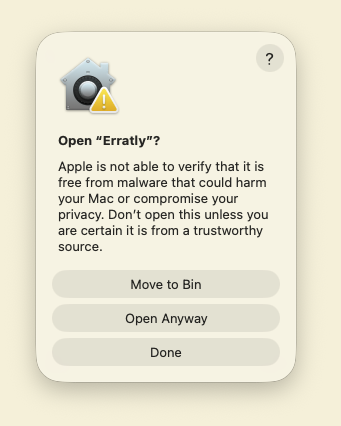
How to open Erratly
Since Erratly isn't notarized by Apple yet, macOS shows a warning the first time you open it. This doesn't mean anything is wrong — it just means Apple hasn't reviewed the app. Here's how to open it anyway.
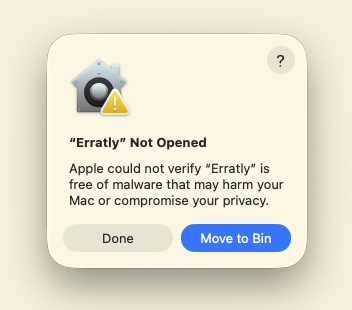
- 01Dismiss the warningWhen the “Erratly” can't be opened dialog appears, click Done (not Move to Trash).
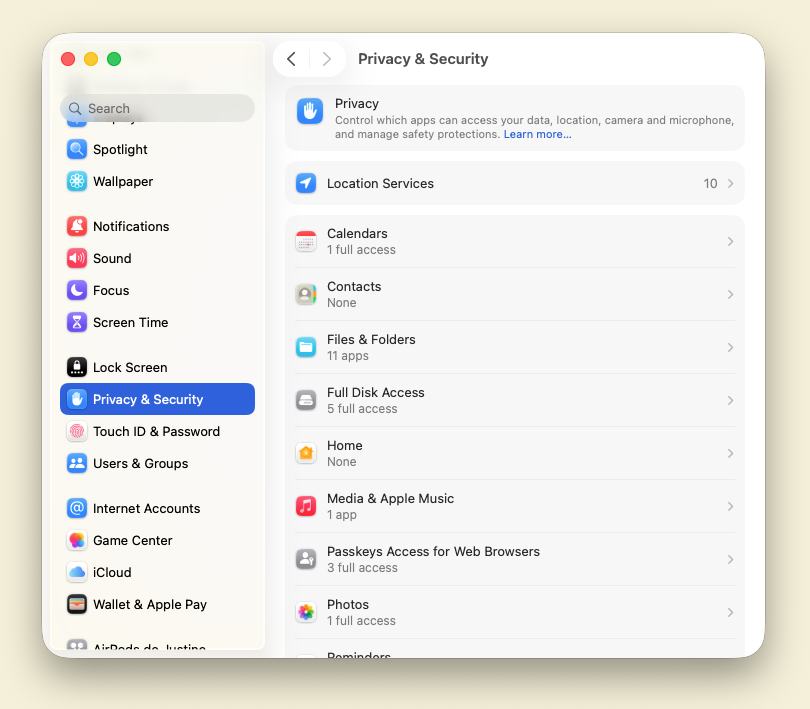
- 02Open Privacy & Security settingsGo to the Apple menu → System Settings → Privacy & Security.
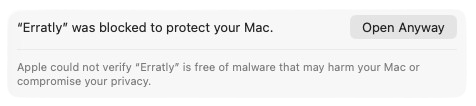
- 03Find the "Open Anyway" buttonScroll down to the Security section. You'll see a message about Erratly being blocked, with an Open Anyway button next to it — click it.
- 04ConfirmClick Open Anyway again in the dialog that appears, then enter your Mac password or use Touch ID to confirm.